Active Directory by CIS Benchmark: how I built and hardened a domain from scratch
OU structure, order in group policies, CIS Level 1 hardening, LAPS, AppLocker, BitLocker and regular domain audits. What worked and what I had to redo.
Translated from the Russian original. Русская версия
An office of about a hundred people, computers in a workgroup, everyone a local administrator, passwords “whatever is convenient”, software installed however people liked. A familiar picture for a company that grew faster than its IT. That is where building information security started: until you have a managed domain, everything else — antivirus, SIEM, audits — is built on sand.
Domain, account and group names, as well as specific exceptions, are replaced with placeholders.
Where to start: structure, not policies
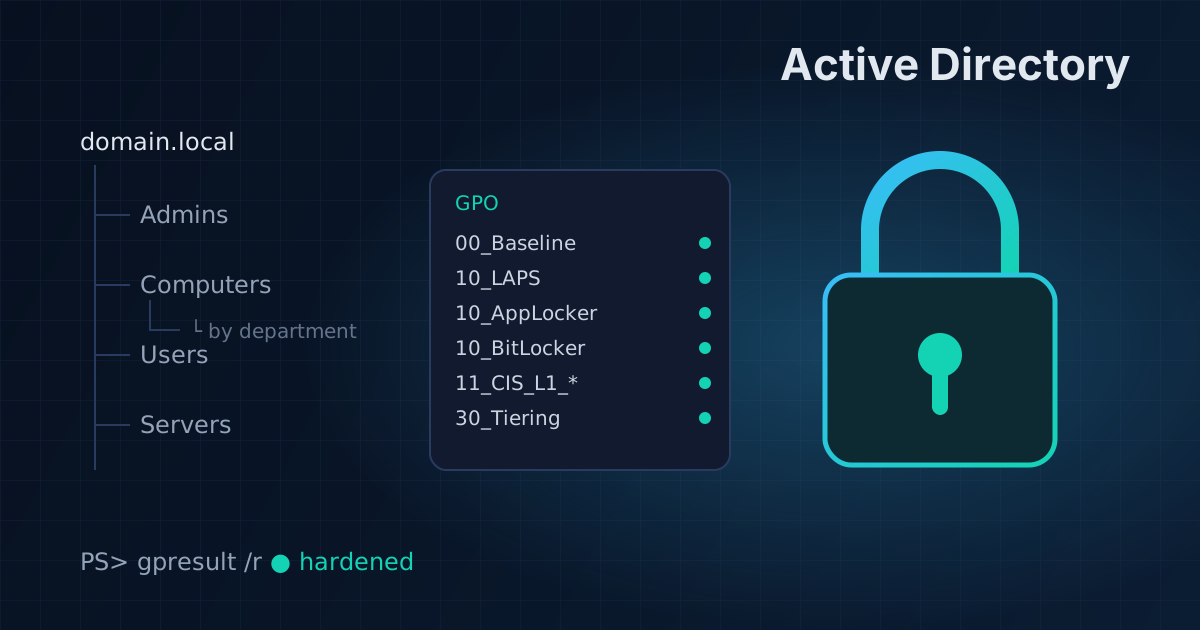
The most common mistake is jumping straight into policies. First you need an organizational unit (OU) structure, because that is what GPOs are linked to. I ended up with four root branches:
domain.local
├── Admins              — admin accounts and groups, split by role
├── Computers
│   └── Client devices  → by department
├── Users               → the same departments as computers
├── Servers             → domain controllers, file, app, security
└── Service objects     → service accounts, integrations
Rules that saved me a lot of time:
- The user structure mirrors the computer structure. A new department means a new OU in both branches. Then it is always clear where to link that department’s policies.
- Admins get a separate branch split by role: domain, server, workstation, GPO and security admins. This is the foundation for privilege tiering.
- A separate OU for unidentified computers. Anything that joins the domain outside the process ends up there, in plain sight, under its own policy.
Order in group policies
After a year you have dozens of policies, and without a system nobody can make sense of them. Two rules:
- GPOs are created only in the “Group Policy Objects” container; OUs only get links. That way one policy can apply to several OUs and you never have to hunt for it across the tree.
- A name prefix shows purpose and order:
00_  baseline PC and user settings, updates, time, Defender
10_  security: passwords, audit, firewall, BitLocker, USB, LSA, AppLocker
11_  CIS Level 1, split by benchmark section
20_  software installation
21_  software configuration
30_  rights and access: local admins, no domain admin logon to PCs, RDP
40_  department-specific policies
I ended up with about 150 policies, and for each one it is obvious which group it belongs to. Every policy has a note in the knowledge base: what it does, where it is linked, who may edit it.
Software deployment via GPO
A big block on its own is 20_ and 21_: installing and configuring software. Browsers, office suites, archivers, messengers, dev tools for developers, graphics editors for marketing — all rolled out by policy to the right OUs instead of by hand. The benefits:
- a new employee gets a ready workstation right after logging into the domain;
- the same versions and settings everywhere;
- users don’t need admin rights to install anything — which is the key precondition for all the other hardening.
Hardening by CIS Level 1
The CIS Benchmark for Windows is hundreds of settings. Instead of one giant policy I split Level 1 by benchmark section — that makes it easier to figure out what broke and to roll back piece by piece:
- password policy and account lockout after several failed attempts;
- user rights assignment — who can log on locally, over the network, via RDP, who can debug processes;
- logon rights — deny logon for service and guest accounts;
- audit policy — what goes into the security log (without it the SIEM is blind);
- service configuration — disabling unnecessary and risky services;
- User Account Control (UAC) and baseline security options.
How to roll it out without breaking things: first a test OU with a couple of computers from different departments, a week of observation, collecting complaints, adjusting — and only then linking to all computers. Be especially careful with user rights and services: they are what breaks niche software (accounting, banking clients, e-signature tools).
Beyond the benchmark
LAPS — a unique local admin password
The same local administrator password on every PC is a gift to an attacker: compromise one machine, get them all. LAPS generates a unique password on each computer and stores it in AD, readable only by the right admin group. My settings:
- 14 characters, all character classes;
- rotated every 30 days;
- the local admin account is renamed and the built-in one is disabled.
AppLocker — blocking what shouldn’t run
Users without admin rights can no longer install programs into Program Files, but they can still run anything from their profile and Temp — which is exactly where most malware starts. AppLocker closes that gap:
- everything signed by trusted publishers and located in system directories is allowed;
- script hosts (
wscript,cscript) are blocked for regular users; - legitimate programs that install into the user profile get targeted exceptions by path or publisher.
Before enforcing, run it in audit-only mode: the AppLocker log shows exactly what would have been blocked, and you build the exception list without user complaints.
Credential protection
- LSA Protection (RunAsPPL) — the LSASS process is protected from memory reads, which makes stealing hashes and passwords with tools like mimikatz much harder;
- no saved passwords in Windows and anonymous access disabled;
- domain admins cannot log on to workstations — their credentials never stay in the memory of user PCs.
Data and endpoint protection
- BitLocker — disk encryption with recovery keys stored in AD;
- USB storage blocking and autorun disabled;
- Windows Firewall with centrally managed rules;
- SmartScreen and the Microsoft Store disabled.
Audit: trust, but verify
Policies drift over time: someone adds an exception, someone creates an account with a non-expiring password, someone grants rights on an OU. So I wrote a script that regularly exports the state of the domain — users, groups, GPOs and their links, OU permissions, replication status — and I compare the exports with each other. What usually comes up in such an audit:
- accounts flagged “password never expires” — clean them up in stages, starting with admin and service accounts;
- a minimum password length that is too short at the domain level;
- extra members of privileged groups and accounts with
AdminCount=1that stopped being admins long ago; - excessive OU permissions (
GenericAll,WriteDacl,WriteOwner) for non-standard groups — a potential privilege escalation path; - disabled and unlinked policies nobody remembers creating.
Every finding goes into a prioritized plan, and differences between exports go into a log.
The checklist I use to review a domain
A short summary of what’s worth checking in any domain:
- users are not local administrators;
- admins work under a regular account and use the privileged one only for administration;
- admin accounts are tiered — domain, servers, workstations — and never log on where they shouldn’t;
- LAPS is deployed everywhere, and network logon is denied for local administrators;
- service accounts are gMSA, with no passwords in scripts and no interactive logon;
- LM and NTLMv1 are disabled, SMB signing is on, and domain controllers enforce LDAP signing and channel binding;
- RunAsPPL is enabled and disks are encrypted with BitLocker;
- accounts lock out after failed attempts, and the SIEM alerts on lockouts.
Takeaways
- Start with the OU structure and naming rules — without them policies turn into chaos within six months.
- Split the CIS Benchmark into parts and roll it out through a test OU.
- LAPS, AppLocker in audit mode, LSA Protection and banning domain admin logons to PCs give the most protection per unit of effort.
- A domain needs regular audits — policies and permissions drift on their own.
- The domain is an event source for the SIEM: the CIS audit policy is what makes brute force, lockouts and suspicious logons visible. More on that in Building a SOC on Wazuh from scratch.